My Site Is Doing Something Weird. Is It a Big Deal?

TL;DR
How alarming a WordPress site problem looks doesn’t tell you much about how serious it is. A scrambled page can clear up on refresh, while a contact form that still says “thank you” can quietly stop sending you inquiries. To size up an oddity, ask four questions: who can see it, what it’s stopping people from doing, what changed just before it started, and whether it’s staying, spreading, or gone. You can answer all four without touching your site’s settings. When answering them would mean changing the live site, or when the answers point to visitors being blocked or someone else having been in your site, that’s the moment to get help.
You Noticed Something, and Now You Can’t Unsee It
You logged in to post something or check an order, and something was off. The homepage looks squished. A button is missing. A client mentioned they never heard back after filling out your form. The site feels slow today, or there’s an error message where your page should be, or the password that worked last week doesn’t.
And now you have a question you didn’t plan to spend time on: is this a big deal?
Both wrong answers feel bad. Ignore something real, and you might be losing clients without knowing it. Panic over nothing, and you’ve lost an afternoon and a little more trust in your own judgment. Underneath that is a quieter question: is this something I did? You don’t need to become a WordPress technician to answer any of this. You need a way to look at what’s happening clearly enough to tell what kind of problem it is.
How It Looks Isn’t How Serious It Is
How bad a problem looks doesn’t reliably tell you how serious it is. A page that suddenly looks scrambled is sometimes a stored copy of the page that hasn’t caught up, and it can look normal again after a refresh or a little time. Meanwhile, a problem that stops inquiries from reaching you can be nearly invisible. WordPress’s own troubleshooting documentation explains that site email can fail, or be routed to a spam folder or discarded, which means a contact or booking form can show its success message while the notification never reaches you. And Google notes that when a site is hacked, the redirect sometimes depends on the referrer, user agent, or device, so a visitor arriving from search might be sent somewhere strange while you see your normal homepage.
That doesn’t mean dramatic problems are always harmless. Some look exactly as serious as they are. A blank white page, a “There has been a critical error on this website” message, or an “Error establishing a database connection” notice all mean visitors can’t use the site. WordPress lists these among its most common errors, and none of them is a cosmetic quirk. Appearance is one clue, not the answer.
Four Questions to Tell a Quirk From a Real Problem
None of these requires you to change anything on your site.
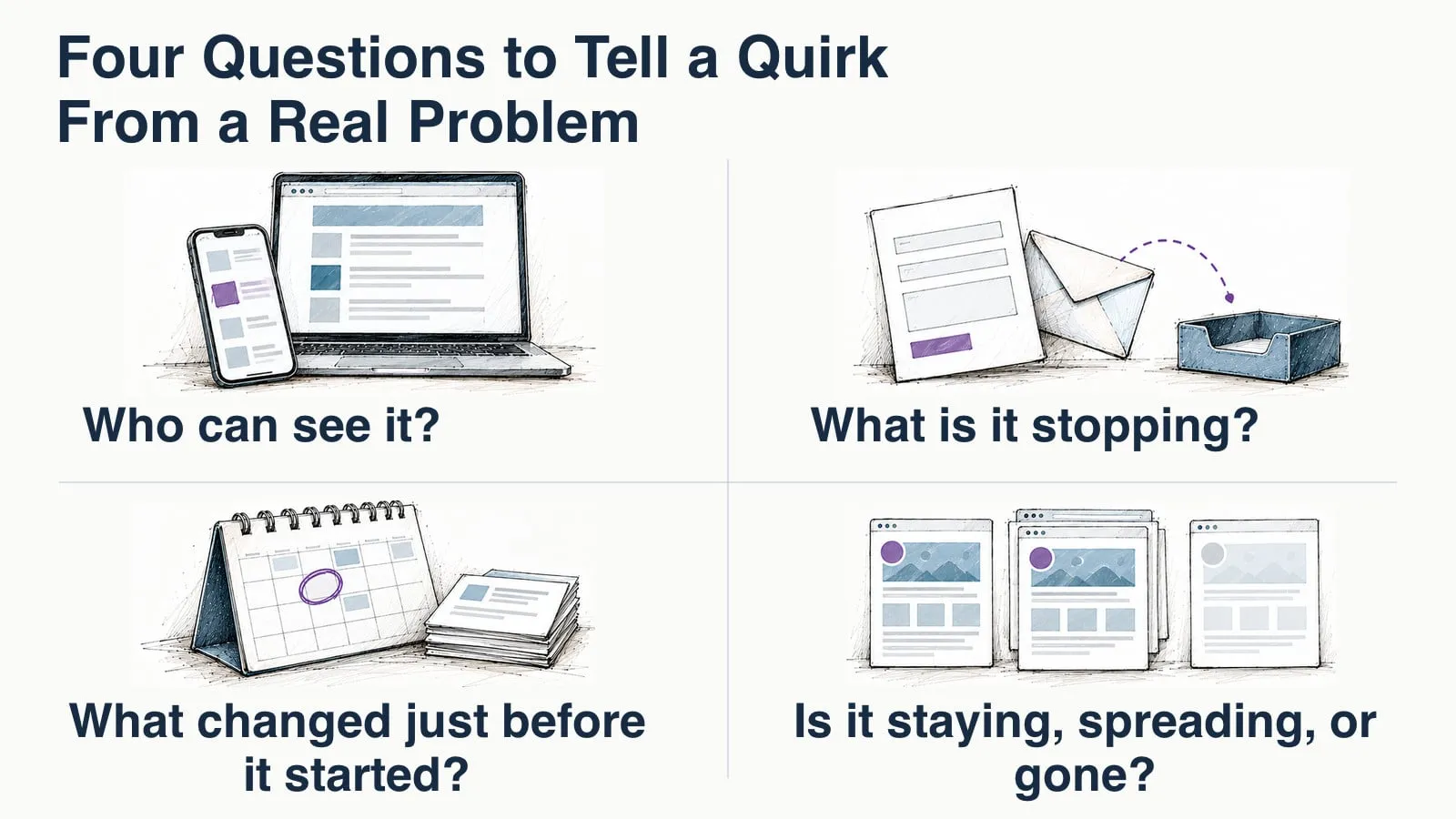
Who can see it?
Start by finding out whether the problem is on your screen or on the site. Open the page on a different device, like your phone with Wi-Fi turned off, or in a private or incognito browser window. Many WordPress sites use caching, which saves stored copies of pages and serves those copies to visitors so the site loads faster. That’s useful, but it also means one person can be looking at an older or half-updated version of a page while someone else sees the current one. Clearing your browser’s cache is also one of the standard first suggestions in WordPress’s troubleshooting FAQ.
If the problem only shows up in one browser on one computer, it may be limited to that browser. If it shows up on several devices, more visitors may be affected. These checks help you see who is affected; they don’t prove the cause. If a client reports a problem you can’t see, take their report seriously.
What is it stopping?
This is the question that matters most. Some oddities change how the site looks. Others change what people can do. A misaligned image, an old font, or a section that’s spaced strangely is worth fixing, but people can still read about you and reach you. A form that doesn’t deliver, a booking or payment step that fails, a member area clients can’t get into, or a login you can’t get past is different. Those stop the site from doing its job for your business.
Ask what a client or prospective client can’t do right now because of it. If the answer is “nothing, it just looks off,” you have time. If the answer is “they can’t reach me, buy, book, or get into what they paid for,” it has moved up the list.
What changed just before it started?
Think back to the last few days. Did you install or update a plugin, change a setting, edit a page, or switch something with your host? It’s also worth knowing that your site can change without you doing anything. Since WordPress 5.5, plugins and themes can be set to update automatically, and WordPress runs those auto-updates twice a day by default. If you’re not sure what on your site is set to update on its own, I walked through that in Automatic WordPress Updates: Turn On or Pay Someone?.
So the answer to “is this something I did?” is: perhaps, but a change can also happen automatically while you’re doing your actual work. Either way, knowing roughly when the oddity started and what changed around then is one of the most useful things you can hand to whoever looks at it.
Is it staying, spreading, or gone?
A glitch that shows up once and is gone after a refresh is in a different category from one that keeps coming back. Notice whether it’s on one page or several, whether it’s getting worse, and whether it returns after it seemed to fix itself. A problem that comes and goes is easy to dismiss, but if it keeps returning, something underneath it hasn’t been resolved.
What You Can Check Before Changing Site Settings
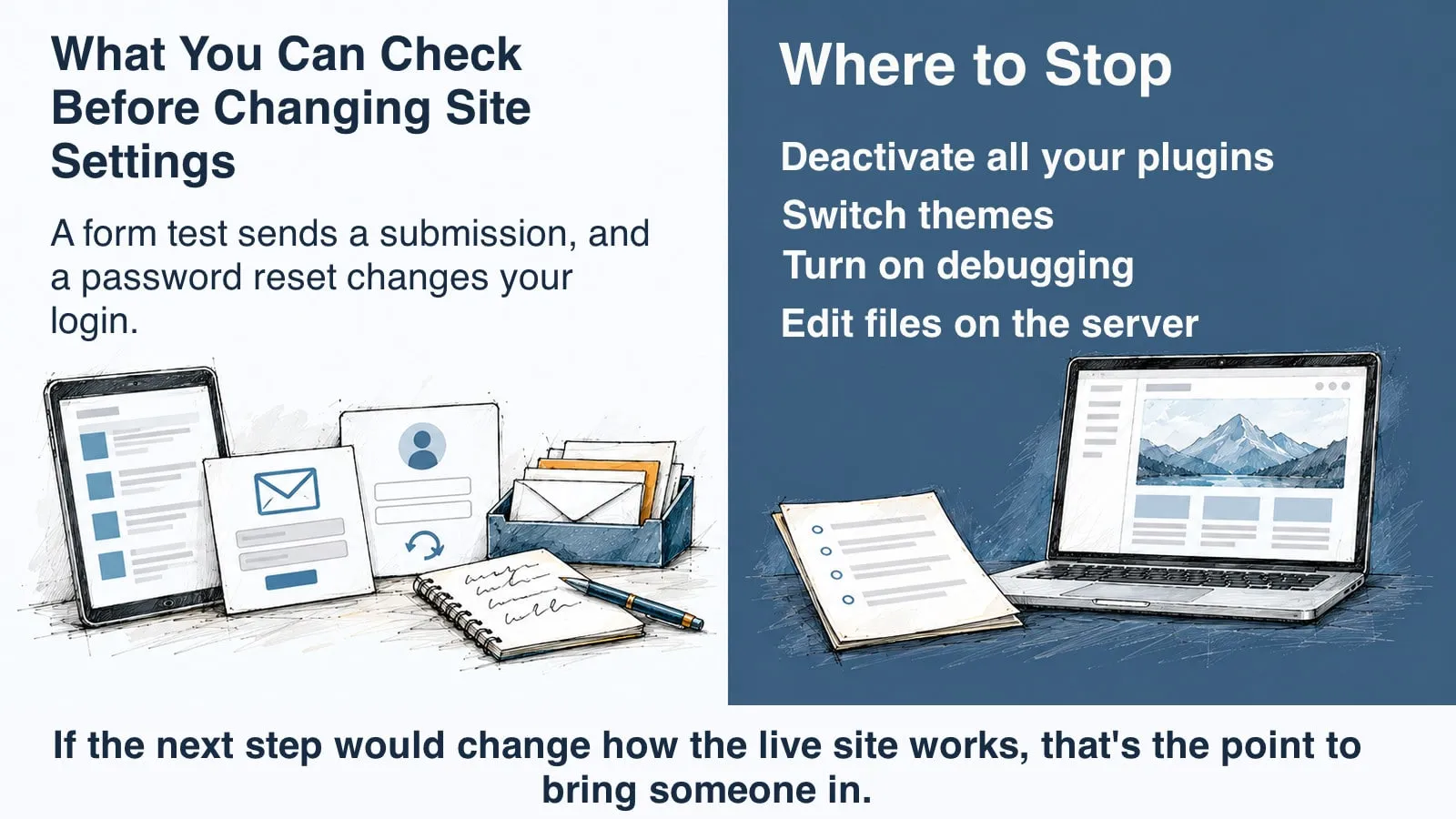
Start by looking and taking notes. A form test sends a submission, and a password reset changes your login. Neither requires you to change plugins, themes, or site settings.
- Look from somewhere else. A second device, a private window, or a different browser helps you check whether the problem appears elsewhere.
- Test the thing that matters. Send a test message through your contact form, then check your inbox and spam folder. Look through the booking, payment, or member-access path, but stop before making a booking or payment. If checking requires changes to the live site, get help.
- Try the official login reset. If you can’t log in, WordPress says the easiest fix is usually the “Lost your password?” link on the login page. If the reset email never arrives, that points back to an email problem, which is useful to know.
- Check the inbox WordPress writes to. When WordPress hits a serious error, it emails the site’s admin address with details and a special link into recovery mode. That inbox is also where auto-update notices land. Look there, including spam. If you don’t know which address that is, or you no longer have access to it, that’s worth noting too.
- Glance at Site Health. In your dashboard, under Tools > Site Health, WordPress sorts what it finds into critical issues, recommended improvements, and passed tests. For this purpose, only the critical items matter. Site Health is more useful as part of a regular checkup, which I covered in How Do I Know If My Website Is Actually Healthy?.
- Write down what you’re seeing. What it looks like, which pages, when you first noticed, what changed recently, and what you’ve already tried. A screenshot helps.
That last one sounds minor, but it isn’t. WordPress’s own guidance for a site that might be hacked opens with “Stay calm” and then “Document”: what you’re seeing, when you noticed it, and what actions were taken recently. Those notes help whether you sort it out yourself or hand it off.
Where to Stop
Search for help with almost any WordPress oddity and you’ll find advice to deactivate all your plugins, switch themes, turn on debugging, or edit files on the server. Those are real troubleshooting steps, but they all change your live site while clients may be using it. Deactivating plugins can switch off your forms, payments, or member access along with whatever is causing the problem. WordPress itself says its debug tools are not recommended on live sites, and Site Health flags it as a critical issue when a site is set to show errors to visitors.
A reasonable line for a business owner is this: if the next step would change how the live site works, that’s the point to bring someone in. Stopping there isn’t a failure. You’ve already done the part only you can do, which is notice clearly.
Signs It’s Worth Getting Help Now
Some answers to the four questions mean it’s time to stop sorting and ask for help today:
- Visitors can’t use the site. A blank page, the critical error message, a database connection error, or pages that won’t load for anyone.
- People can’t do business with you. Your form isn’t delivering, bookings or payments fail, or clients can’t get into material they paid for.
- You can’t get in. You can’t log in and the password reset email doesn’t arrive.
- Something suggests someone else has been in the site. WordPress lists clear indicators of compromise, including new users or other changes you didn’t authorize, warnings from Google or visitors’ antivirus software, or your host disabling the site. Pages that send visitors to spam are another sign. Google’s Security issues report in Search Console is where Google shows its findings if it believes a site was hacked.
- It keeps coming back. It seemed to fix itself, then returned.
Not every scare on that list turns out to be what it looks like. WordPress’s hacked-site guidance notes that your host can help confirm whether something is an actual hack or a loss of service. That’s one more reason to bring your notes to someone rather than trying to repair it yourself under pressure. And if what worried you was a warning that arrived by email or message, rather than something you saw on the site itself, that’s a different question. I wrote about it in Urgent Website Warning? How to Check What Is Real.
And if none of these signs apply, you probably have room. Note what you saw, keep an eye on whether it returns, and deal with it when you have the time.
Your Job Is to Notice, Not to Fix
When something on your site goes sideways, it’s easy to feel like you’re supposed to fix it, or at least understand it. You don’t have to do either. What helps most is noticing clearly: who can see it, what it’s stopping, what changed, and whether it’s sticking around. Those observations help you decide when to ask for help, and give the person helping you a useful place to start.
If you’ve worked through the questions and still can’t tell whether it’s a big deal, tell me what your site is doing. Send me what you noticed and when, and I’ll help you figure out whether it needs attention now, can wait, or isn’t worth more of your time.
Frequently Asked Questions
Can a WordPress site break on its own if I didn’t change anything?
Yes. A site can change without you touching it. Plugins and themes with auto-updates turned on update automatically, and WordPress runs those updates twice a day by default and emails the site owner about them. An update that doesn’t play well with something else on the site can change how it looks or works.
Why does my site look fine to me but broken to someone else?
A few things can cause this. Caching serves stored copies of pages, so different people can see different versions for a while. Browser caches can also hold onto old files. Hacked sites can also redirect only some visitors, depending on how they arrived or what device they’re using. If someone else reports a problem you can’t see, check from another device or a private window and take their report seriously.
What does “There has been a critical error on this website” mean?
It means WordPress hit an error serious enough to stop the page from loading normally. Common causes include plugin or theme conflicts, an incompatible PHP version, or running out of memory. WordPress sends an email to the site’s admin address with details and a recovery link. Check that inbox, including spam, and get help if you can’t find the email or don’t have access to that address.
Should I deactivate all my plugins to find the problem?
Not by yourself on the live site. Deactivating plugins is a real troubleshooting step, but it changes how the live site works while clients may be using it, and it can switch off your forms, payments, or member access along with whatever is causing the problem. Stick to checks that only look, and hand the plugin testing to whoever is helping you.
What should I write down before I ask for help?
What you’re seeing, which pages it affects, when you first noticed it, what changed recently (including updates you didn’t make yourself), and anything you’ve already tried. Add a screenshot if you can. WordPress’s own hacked-site guidance treats documenting these details as an early step, and they save whoever helps you from starting at zero.
Sources
- Common WordPress errors, WordPress Advanced Administration Handbook
- Fatal Error Recovery Mode in 5.2, Make WordPress Core
- FAQ Troubleshooting, WordPress.org Documentation
- Plugin and themes auto-updates, WordPress.org Documentation
- FAQ My site was hacked, WordPress.org Documentation
- Debugging in WordPress, WordPress Advanced Administration Handbook
- Spam policies for Google web search, Google Search Central
- Security issues report, Search Console Help