Who Actually Looks After My Website Right Now?
TL;DR
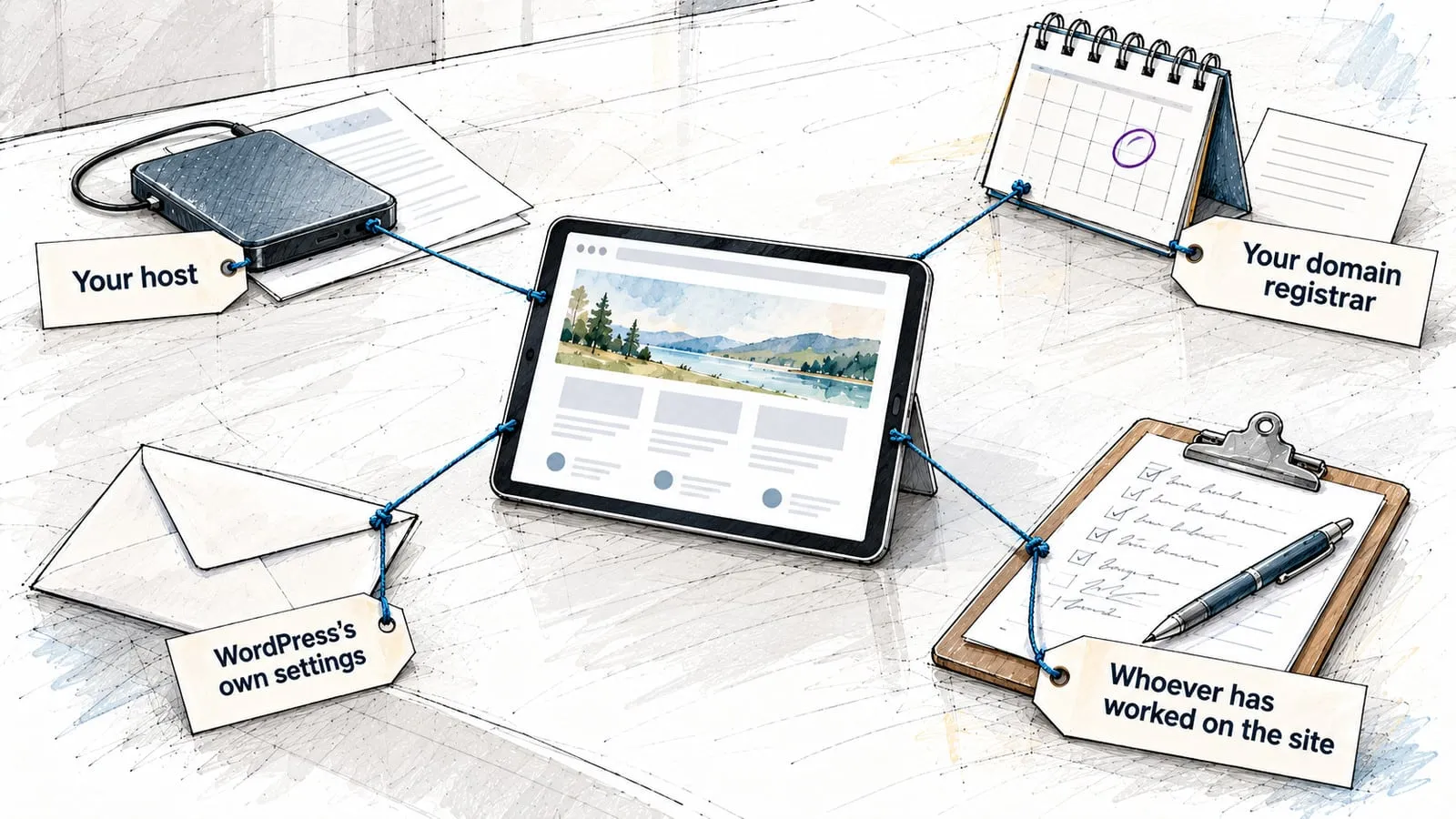
Looking after a WordPress site isn’t one job. It’s several: updates, backups, admin access, hosting and domain renewals, and noticing when something quietly stops working. Those jobs can be spread across your host, your domain registrar, WordPress’s own settings, and whoever has worked on the site. People may assume someone else has a job covered. A gap can be a job nobody was clearly given, even when nothing appears broken. You can find out where you stand without getting technical: go job by job, write down who does it and how you’d know, then decide for each gap whether to do it yourself, assign it, or get help. And treat your backups as unproven until someone has actually restored from one.
The Question You Can’t Quite Answer
Someone asks who takes care of your website, and the answer comes out in pieces. I think the host does backups. The developer set up the updates a few years ago. There’s a plugin that sends emails sometimes. The domain renews… somewhere.
If that answer sounds familiar, you can check it one job at a time without blaming yourself. Maybe a developer or VA handled things for a while and then got harder to reach. Maybe you inherited the site. Maybe it lives on a hosting plan and it seemed reasonable to assume the host was taking care of it. Those are all normal ways for an established site to end up where it is.
What’s usually missing isn’t skill or effort. It’s clarity about whose job each piece is. And that’s something you can sort out yourself, one job at a time.
Why Website Care Falls Between People
Website care feels like one thing, but the work is split across parties with their own rules. Your host has its own terms about what it backs up and for how long. Your registrar sends renewal notices to whoever is listed as the registrant. WordPress sends its alerts to one email address in your settings. Those separate services don’t, by themselves, tell you whether someone is watching the whole picture.
Here’s a small detail that shows how this happens. WordPress sends notices about updates, plugin or theme problems, and critical errors to the Administration Email Address in Settings → General. WordPress’s own documentation makes a point of it: if your site was originally set up by a developer or agency, check that this address points to an inbox your business can access. If that address still belongs to someone who moved on, you may not be seeing the warnings meant for the site’s owner. Check who receives those notices and who has agreed to act on them. An unclear handover doesn’t, by itself, show that anyone acted in bad faith.
Map It, One Job at a Time
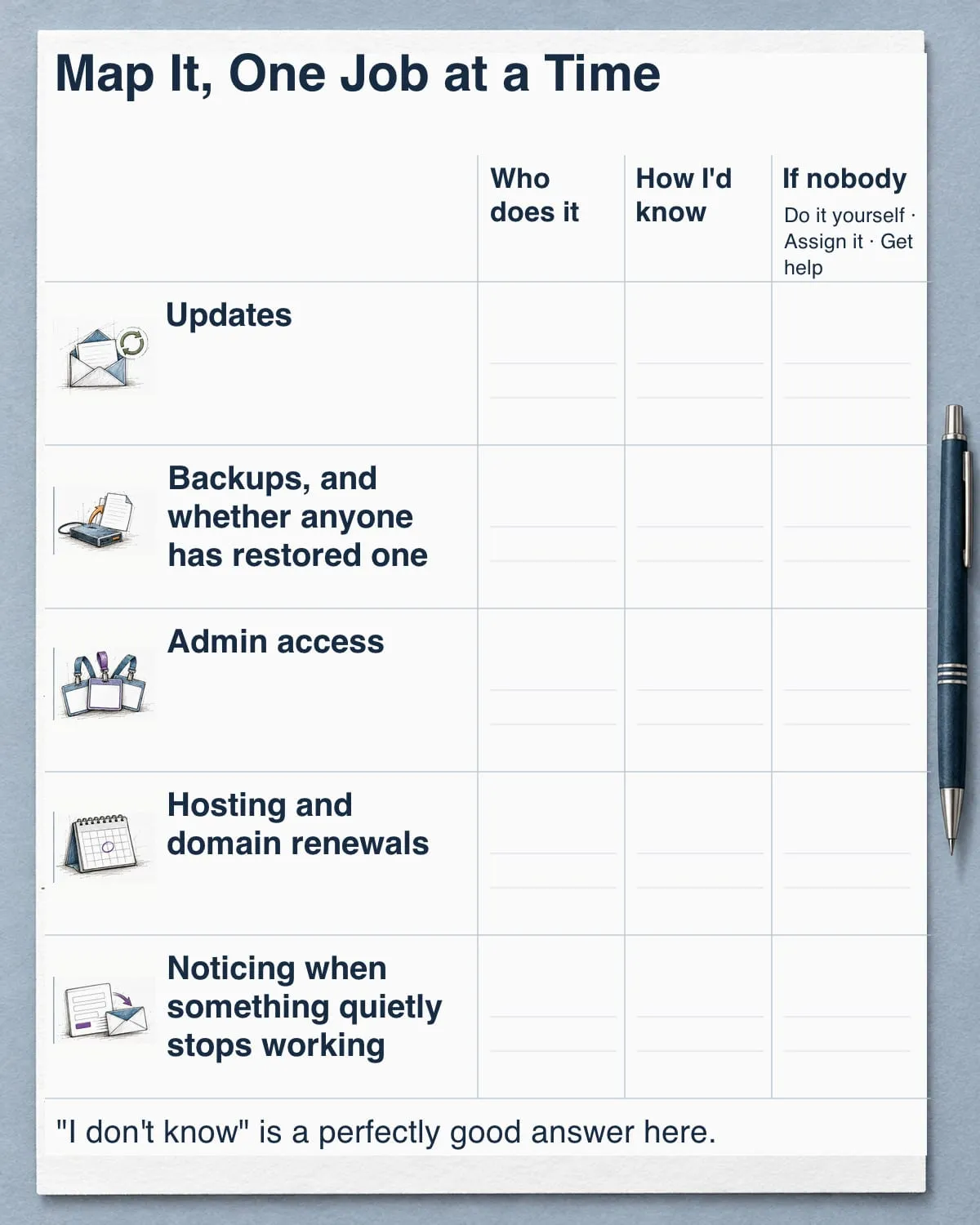
The simplest way to see where you stand is to take each care job and answer three questions about it: Who does this? How would I know it’s being done? What happens if the answer is “nobody” or “I don’t know”?
“I don’t know” is a perfectly good answer here. Finding those is the point.
Updates
WordPress, your theme, and your plugins all get updates, and something or someone has to apply them. That might be you, a person you pay, your host, or automatic updates you or someone else turned on. Plugins are where most of the security fixes are needed: Patchstack’s State of WordPress Security in 2026 counted 11,334 new vulnerabilities in the WordPress ecosystem in 2025, and 91% of them were in plugins.
The ownership question isn’t only who clicks update. It’s who notices when an update fails. WordPress sends an email after automatic plugin and theme updates, including when one fails. That email goes to the site’s owner address, which brings you right back to whose inbox that is. Whether to turn on automatic updates or keep paying someone is a separate decision, and I’ve written about that one on its own. Here the question is simply who owns the job.
Your question: who applies updates on my site, and who would hear about it if one went wrong?
Backups, and whether anyone has restored one
Knowing backups exist is only part of the answer. You also need to know where they’re stored, how far back they go, whether copies exist outside the hosting account, and who would use one to restore the site. Those are the parts that matter on the day you need it, and the host side of it gets its own section below.
Your question: where are my backups, how far back do they go, and who would run a restore?
Admin access
In WordPress, an Administrator is somebody who has access to all the administration features of the site. Every administrator account can install plugins, change settings, and add or remove users. WordPress’s hardening guide describes limiting access as reducing the possible entry points to your site, and it’s blunt that someone who gets into an administrator account can install malicious code.
So it’s worth opening Users in your dashboard and looking at who is listed as an Administrator today. You may find a former developer, a past assistant, or an account nobody recognizes. That doesn’t mean anyone is up to something; accounts tend to stay where they were left. Once you’re sure you have your own working administrator login, people who no longer work on the site can be removed or given a smaller role. If you’re not sure your own access is solid, sort that out first, and get help if you need it.
Your question: who has administrator access right now, and does each of them still need it?
Hosting and domain renewals
Hosting and domain registration are separate services. They may be with different companies. For each one, it’s worth knowing whose name it’s in, whose card pays for it, and whose inbox gets the reminders.
For domains, ICANN is clear that renewing is the registrant’s responsibility, along with keeping contact and payment details current. For generic top-level domains covered by ICANN’s policy, registrars must send reminders about a month and a week before expiry to the registrant’s contact email. Country-code domain policies may differ. If a developer registered the domain under their own account years ago, those reminders may be going to them. Grace periods may be available after expiry, but the rules and fees vary by registrar and domain type. Check your own terms rather than relying on a grace period.
Your question: whose name are my hosting and domain in, and will the renewal notices reach me?
Noticing when something quietly stops working
This job needs a named owner too. A contact form can show a “thanks, we got your message” screen while the email behind it never arrives or lands in spam. Web servers aren’t really built for sending email, and automated messages from WordPress can get filtered as spam. From the outside, the site looks fine.
Somebody needs to be the person who occasionally goes through the path a client actually uses (the form, the booking, the login) and confirms the other end receives it. It doesn’t have to be technical work. It just has to be someone’s. If you want a fuller list of what’s worth checking, my article on whether your website is actually healthy walks through it.
Your question: who checks that the things clients use are still working, and how often?
“My Host Handles It” — What Hosts Actually Say
This one comes up so often that it’s worth looking at directly. Sometimes it’s true, or partly true. The only way to know is to check what your host actually promises, and hosts vary a lot. Bluehost’s Terms of Service say the customer is “solely responsible” for backing up their content and websites. The same terms say Bluehost backs up data for its own purposes but is under no obligation to you, and that it won’t attempt to back up accounts over 50,000 files or 30 GB. SiteGround, on the other hand, makes automatic daily backups and keeps up to 30 daily copies on shared hosting and up to 7 on its Cloud plans. It also says that if you delete a site, you lose access to its backups. WP Engine makes daily backups automatically and keeps 30 days of them.
So “my host handles it” can mean anything from “it’s your job” to “we keep about a month of daily copies inside your account.” Some hosts genuinely do a lot of this work, and yours may be one of them. What matters is knowing which version you have. Three questions will tell you most of it:
- How far back do the host’s backups go?
- Are copies kept anywhere other than this hosting account?
- If I needed to restore, who would actually do it: me, the host, or someone else?
If your hosting account is in someone else’s name, or you can’t log into it, that’s worth knowing too. Backups that live inside an account you don’t control aren’t much help to you.
A Backup Isn’t Proven Until Someone Restores It
A backup file sitting in a folder tells you something was saved. It doesn’t tell you whether the site comes back from it. A backup can turn out to be incomplete, or the restore can depend on an account or a person nobody can reach anymore.
That’s why CISA’s guidance for small businesses advises scheduled recovery tests to verify backups, along with keeping copies separate from your main systems. A test restore, ideally to a copy of the site rather than the live one, is how you find out whether what you have actually works.
If nobody has ever restored from your backups, you don’t have a failed backup. You have an untested one. It’s one of the more useful gaps to close, because it turns “I think we’re covered” into something you actually know.
Decide What to Do With Each Gap
Once you’ve gone through the jobs, you’ll probably have a few clear answers and a few “I don’t know”s. Each gap can go one of three ways.
Do it yourself when it’s a check you can do in a few minutes and repeat. Confirming the Administration Email Address is yours, seeing whose name the domain is in, turning on auto-renew, looking at the Users list, and sending yourself a test message through your contact form all fit here.
Assign it when someone you already work with can take it on. The key is saying it plainly: “You own updates, and you’ll tell me if one fails.” A job someone agreed to is very different from a job you hope they’re doing.
Get help when the job needs access or skills you don’t have. Testing a restore, recovering an account someone else controls, or safely cleaning up old administrator accounts usually belong here. There’s no prize for doing these alone, and they go more smoothly with someone who has done them before.
Then write it down. One page is enough: each job, who owns it, and how you’ll know it’s being done. Keep passwords off that page. Its job is to tell you who to call, not to hold the keys. The next time something odd happens, you’ll know where to start.
If You Can’t Tell Who Owns Something
If a couple of answers came back as “nobody” or “someone I can’t reach,” that’s normal, and it’s useful. You now know exactly what to ask about instead of carrying a general worry about whether the site is okay.
If you map it out and there’s a job you still can’t place, or you’re not sure whether what your host does is enough, tell me. I’ll help you work out what’s actually covered, what isn’t, and what’s worth doing about it.
Frequently Asked Questions
Does my web host back up my site?
It depends on your host and your plan. Some hosts make automatic daily backups and keep a few weeks of them; others state in their terms that backups are your responsibility. Check how far back your host’s backups go, whether copies exist outside your hosting account, and who would run a restore.
My developer stopped responding. What should I check first?
Start with which accounts you personally control: your hosting account, your domain registrar, your own WordPress administrator login, and the site’s Administration Email Address. Knowing that tells you what you can fix yourself and what will need help to recover. You don’t need to confront anyone to find it out.
How often should a backup restore be tested?
CISA recommends scheduled recovery tests but doesn’t set a fixed interval. Agree on a schedule with whoever owns backup recovery, and write it down.
Who is responsible for backing up a website?
Whoever has clearly agreed to do it. Some hosts put it on the customer in their terms; Bluehost’s, for example, say the customer is solely responsible for backups. Others make automatic daily copies, but those copies are tied to your hosting account and kept for a limited window. If nobody has clearly agreed to it, treat it as your job to keep or to assign.
Where do my website’s warning emails go?
WordPress sends notices about updates, plugin or theme problems, and critical errors to the Administration Email Address in Settings → General. If a developer or agency set up your site, WordPress recommends checking that this address is one your business can access. Domain renewal reminders are separate: they go to the registrant contact email at your domain registrar.
Sources
- Settings General screen, WordPress.org
- Plugin and themes auto-updates, WordPress.org
- Roles and Capabilities, WordPress.org
- Hardening WordPress, WordPress Developer Resources
- State of WordPress Security in 2026, Patchstack
- FAQs for Registrants: Domain Name Renewals and Expiration, ICANN
- 5 Things Every Domain Name Registrant Should Know About ERRP, ICANN
- Terms of Service, Bluehost
- How to use the Backup service in Site Tools, SiteGround
- How to Backup and Restore Your Site, WP Engine
- Back Up Business Data, CISA
- How to Fix the WordPress Not Sending Emails Issue, Kinsta